How to install n8n on a Hostinger VPS (2026 step-by-step)
By TestedFlows · Published October 16, 2026 · Prices checked October 16, 2026
This page contains affiliate links. If you sign up through them we may earn a commission, at no extra cost to you. How we make money.
What you need: a Hostinger account, about 20 minutes, and optionally a domain you can add DNS records to. What you get: n8n with unlimited workflows and executions, running on your own server at a fixed monthly price.
How the setup fits together
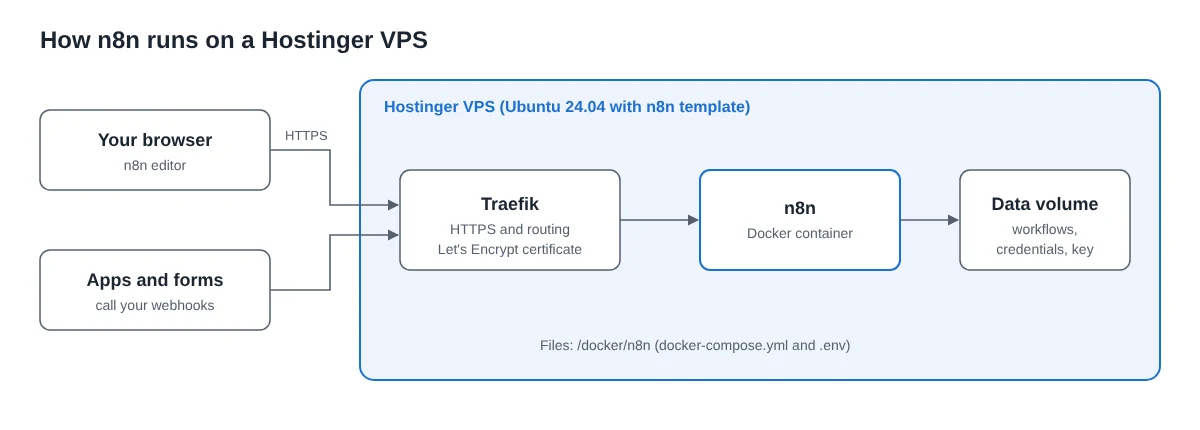
The template runs n8n inside Docker, with Traefik in front of it as a reverse proxy. Traefik handles HTTPS certificates from Let’s Encrypt and passes requests to n8n. Your workflows, credentials and settings live in a Docker volume on the server, so they survive restarts and updates.
Step 1: Pick a plan
Every Hostinger VPS plan can run the n8n template. The difference is how much your workflows can do at once.
| Plan | Specs | Introductory price | Renews at |
|---|---|---|---|
| KVM 1 | 1 vCPU, 4 GB RAM, 50 GB NVMe | $6.49/month (checked Oct 16, 2026) | $11.99/month |
| KVM 2 | 2 vCPU, 8 GB RAM, 100 GB NVMe | $8.99/month (checked Oct 16, 2026) | $14.99/month |
| KVM 4 | 4 vCPU, 16 GB RAM, 200 GB NVMe | $12.99/month (checked Oct 16, 2026) | $28.99/month |
Hostinger bills the whole term upfront, and the introductory price applies to the first term only, so check the total at checkout and note the renewal price. There is a 30-day money-back guarantee.
Which one? KVM 1 handles dozens of everyday workflows (forms, CRM syncs, notifications). Pick KVM 2 if you run AI agents, process large files, or expect many workflows to fire at the same time. You can upgrade later from the dashboard without reinstalling.
Choose a Hostinger VPS planStep 2: Install the n8n template
If you are buying a new VPS, choose the n8n template during setup. On a VPS you already own, install it like this:
- Log in to hPanel and open VPS in the left menu.
- Click Manage next to your server.
- Open OS & Panel, then Operating System.
- Search for n8n and select the Ubuntu 24.04 with n8n template. (There is also an n8n (queue mode) version for high volumes, covered below.)
- Click Change OS, tick the box confirming that existing files will be deleted, and click Next.
- Set a strong root password and click Confirm.
Installing a new operating system erases everything on the server. Only do this on a new VPS or one you have backed up.
Wait for the progress bar at the top of the dashboard to finish. It usually takes a few minutes.
Step 3: Open n8n and create your owner account
On the VPS Overview page, click Manage App. n8n opens on an address based on your server’s hostname. The first visit asks you to create the owner account:
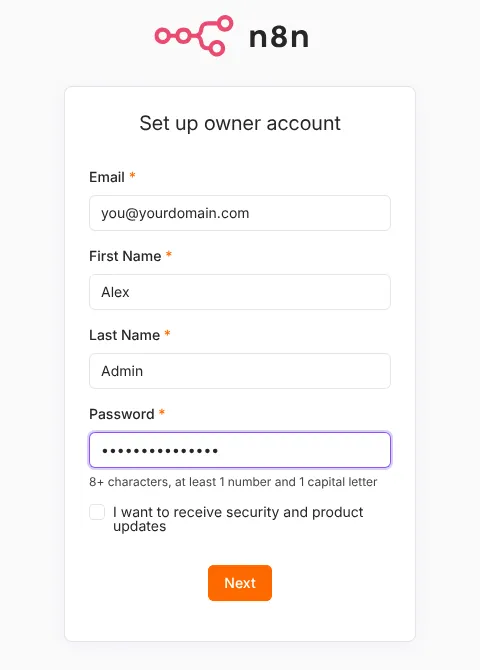
Use a real email and a strong password: this page is on the public internet, and the owner account controls every workflow and credential on the server.
Step 4: Use your own domain (recommended)
The default address works, but a subdomain such as n8n.yourcompany.com is easier to remember and keeps your webhook URLs stable if you ever move servers.
- Add a DNS record. At your domain’s DNS provider, create an A record with the name
n8npointing to your VPS IP address (shown on the VPS Overview page). If your DNS is on Cloudflare, set it to DNS only (grey cloud) for now. - Edit the project. In hPanel, open your VPS, go to Docker Manager, click Manage on the n8n project and open the YAML editor.
- Change the hostname. In the
labelssection, find the TraefikHost(...)rules and replace the default hostname with your subdomain. - Check the n8n settings. In the same file, look at the
environmentsection of the n8n service. If it setsN8N_HOSTorWEBHOOK_URLto the old hostname, change those to your subdomain too, so webhook URLs use the new address. - Deploy. Save and deploy. Traefik requests a new HTTPS certificate automatically; wait one to three minutes, then open your subdomain in a private browser window.
Take a VPS snapshot in hPanel before editing the file, so you can roll back if something goes wrong.
If you see a “too many redirects” error with Cloudflare, set Cloudflare’s SSL/TLS mode to Full (strict), or keep the record on DNS only.
Step 5: Confirm webhooks use your domain
Create a test workflow, add a Webhook node, and look at its Production URL. It should start with your own domain:
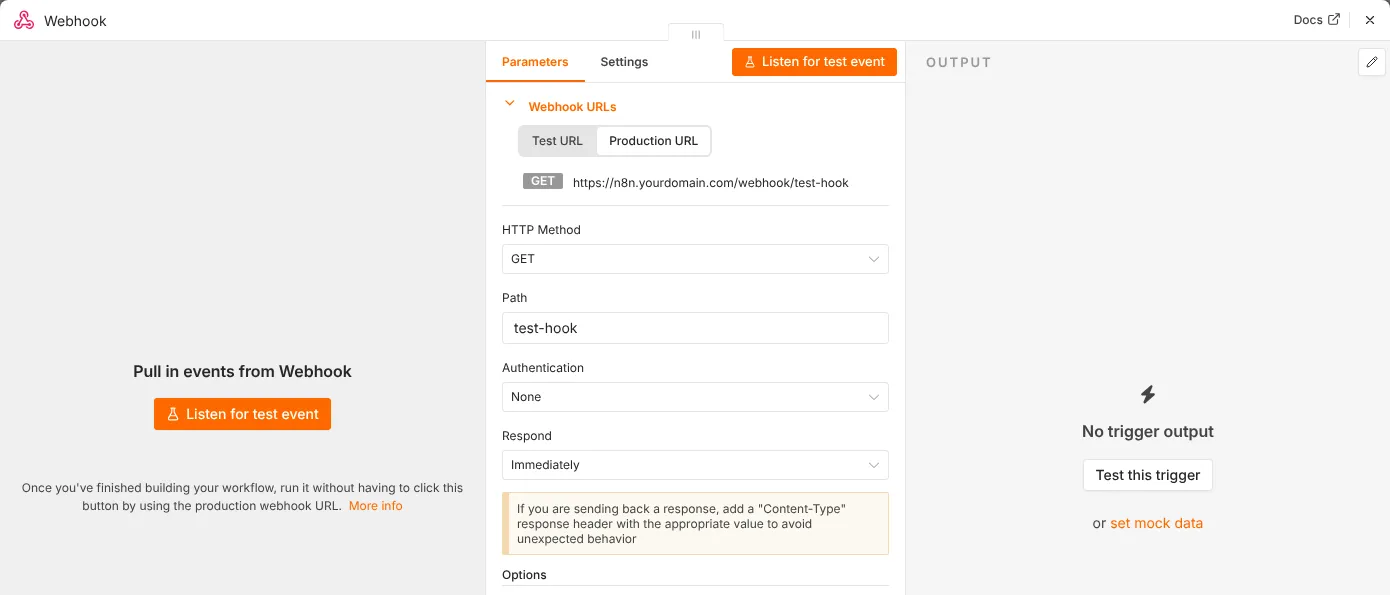
If it still shows the old hostname or localhost, the environment variables from step 4 need fixing. Webhooks are what connect n8n to forms, payment tools and other apps, so get this right before building real workflows.
Step 6: Set your time zone
Scheduled workflows run on the server’s time zone, which may not be yours. Over SSH, open the project folder and edit the compose file:
ssh root@YOUR_SERVER_IP
cd /docker/n8n
nano docker-compose.yml
In the n8n service’s environment section, add or change these lines (use your own time zone name):
- GENERIC_TIMEZONE=Europe/London
- TZ=Europe/London
Save, then apply the change:
docker compose up -dStep 7: Update n8n
n8n releases updates often, and the template does not update itself. Every few weeks, read the release notes, then run:
cd /docker/n8n
docker compose pull
docker compose down
docker compose up -d
Your workflows and credentials stay in the Docker volume, so updating does not touch them. Take a snapshot first so you can roll back if a new version causes problems.
Step 8: Back up and secure the server
- Snapshots: create a VPS snapshot in hPanel before every update and on a regular schedule. It is the simplest full backup.
- Encryption key: n8n encrypts your saved credentials with a key stored in its data folder. Keep the snapshots that contain it; a restore without it cannot read your credentials.
- Export workflows: download important workflows as JSON from the editor from time to time, so you also have a copy off the server.
- Firewall: in hPanel, allow only ports 22 (SSH), 80 and 443.
- SSH key: add an SSH key in hPanel and use it instead of the root password.
When to use queue mode
The n8n (queue mode) template runs n8n with Redis and separate worker processes (three by default), so many executions can run in parallel. You only need it if you run thousands of executions a day or long AI jobs that block each other. You can change the number of workers with:
docker compose up -d --scale n8n-worker=5For most readers, the standard template on KVM 1 or KVM 2 is enough. Start there and move to queue mode if executions start waiting in line.
Is Hostinger a good choice for n8n?
Strengths
- One-click n8n template, running in minutes
- 4 GB RAM on the cheapest plan, more than most VPS hosts at this price
- Unlimited workflows and executions
- Snapshots and a firewall in the dashboard
Weaknesses
- Low price needs a long upfront term
- Renewal price is higher than the intro price
- You still handle n8n updates yourself
- Hostinger supports the server, not your workflows
If you prefer monthly billing with no long contract, a plain Ubuntu server from another provider works too: follow our general Docker guide for self-hosting n8n. Not sure whether to self-host at all? Read n8n Cloud vs self-hosted, and see n8n pricing explained for what n8n Cloud would cost instead.
Get n8n on HostingerFrequently asked questions
Is n8n on Hostinger free?
n8n itself is free to self-host (the Community Edition). You pay Hostinger only for the VPS.
Can I install n8n on Hostinger shared hosting?
No. n8n needs a VPS, because it runs as a long-lived Node.js process in Docker. Shared web hosting plans cannot run it.
How many workflows can KVM 1 handle?
There is no fixed number; it depends on what the workflows do. Simple workflows that move data between apps use little memory, so KVM 1 runs dozens of them. AI agents and large file processing use much more; if memory stays near its limit, upgrade to KVM 2.
Does Hostinger update n8n for me?
No. Hostinger maintains the server, but you update n8n yourself with the three commands in step 7.
Where are the n8n files on the server?
The template keeps its Docker project in /docker/n8n, with docker-compose.yml and a .env file for secrets.
Sources: Hostinger n8n VPS hosting, Hostinger guide to installing n8n, using the n8n VPS template, changing the domain of a Docker project.
Get the free workflow template pack
Tested n8n workflows you can import in one click, plus a short email when new templates and comparisons go live.