How to secure self-hosted n8n (2026): HTTPS, 2FA, backups
By TestedFlows · Published October 22, 2026
A self-hosted n8n instance holds the keys to your other systems: API tokens, OAuth logins, database passwords and customer data all pass through it. Anyone who gets into the editor can read workflow data and run anything your credentials allow. This guide walks through the settings that matter, in order of impact, with commands for a Docker Compose setup like the one in our self-hosting guide.
The commands assume your Compose project folder. That is ~/n8n if you followed our Docker guide, /docker/n8n on Hostinger’s n8n template, and /opt/n8n-docker-caddy on DigitalOcean’s 1-Click App.
1. Serve n8n only over HTTPS
Without HTTPS, your login password, session cookie and every credential you type travel across the internet in plain text. All three setups mentioned above put a reverse proxy (Traefik or Caddy) in front of n8n that gets a free Let’s Encrypt certificate and redirects HTTP to HTTPS.
Check two things:
- Opening
http://n8n.yourdomain.comredirects tohttps://. - n8n’s port 5678 is not reachable from the internet. In your Compose file it should be bound to localhost (
127.0.0.1:5678:5678) or not published at all, so the only way in is through the proxy.
Keep n8n’s secure cookie setting on (it is on by default; never set N8N_SECURE_COOKIE=false on a public server). That setting stops the browser from sending your session cookie over plain HTTP.
2. Turn on two-factor authentication for every user
Older guides tell you to set N8N_BASIC_AUTH_USER and N8N_BASIC_AUTH_PASSWORD. That method was removed in n8n 1.0. Today, every instance has user accounts with passwords, and the right extra layer is two-factor authentication (2FA).
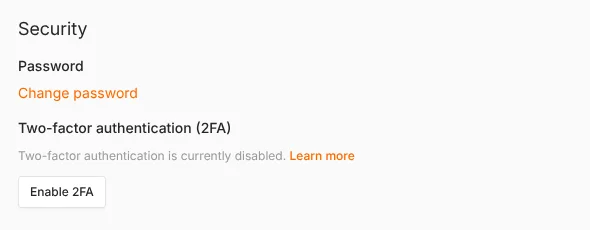
Each user turns it on under Settings, Personal, Two-factor authentication (2FA), by clicking Enable 2FA:
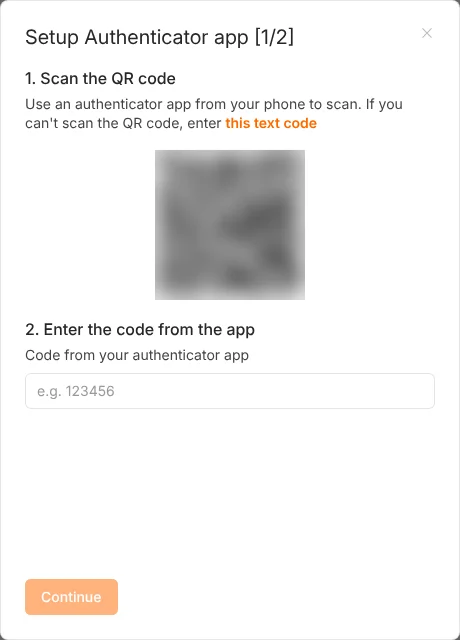
n8n then shows a QR code to scan with an authenticator app such as Google Authenticator, Microsoft Authenticator or 1Password, and asks for the six-digit code:
Save the recovery codes n8n shows at the end in a password manager. They are the only way back in if you lose your phone. Do this first for the owner account, which controls everything on the instance.
Also use a long, unique password for every account, and remove users who no longer need access under Settings, Users.
3. Close every port you don’t need
Your server needs only three open ports: 22 for SSH, and 80 and 443 for the web. Everything else should be closed, including 5678 and any database port.
On Ubuntu with ufw:
ufw default deny incoming
ufw allow OpenSSH
ufw allow 80
ufw allow 443
ufw enable
ufw status
Most providers also offer a cloud firewall in their dashboard (DigitalOcean Cloud Firewalls, Hostinger’s VPS firewall). Use it as well; it blocks traffic before it reaches the server.
Note that Docker can publish ports in a way that bypasses ufw rules. That is why binding n8n to 127.0.0.1 in the Compose file (step 1) matters, and why a provider-level firewall is a useful second layer.
4. Lock down SSH
Most attacks on a new VPS are automated password guesses against SSH.
- Add an SSH key in your provider’s dashboard or with
ssh-copy-id, and confirm you can log in with it. - Then disable password login. In
/etc/ssh/sshd_configset:
PasswordAuthentication no- Restart SSH with
systemctl restart ssh, and test logging in again from a second terminal before closing the first.
Optionally install fail2ban (apt install fail2ban), which blocks addresses after repeated failed logins.
5. Protect your webhooks
Production webhook URLs are public: anyone who finds one can trigger the workflow. For webhooks that start important actions, set Authentication in the Webhook node to Header Auth, Basic Auth or JWT Auth, and give the calling app the matching secret. Header Auth is the easiest for most apps: you choose a header name such as X-Webhook-Secret and a long random value.
Also:
- Use the long random paths n8n generates rather than short, guessable ones like
/webhook/lead. - Validate the incoming data early in the workflow (with an IF or Filter node) and stop if required fields are missing.
- For webhooks from services that sign their requests, such as Stripe or GitHub, verify the signature before acting on the data.
6. Run n8n’s built-in security audit
n8n includes a security audit that checks your instance for common risks. Run it from the Compose folder:
docker compose exec n8n n8n auditIt prints a report with several sections. On our test instance (n8n 2.43.5) it returned:
- Credentials Risk Report: credentials not used in any active workflow, and credentials not used in recently executed workflows. Delete what you no longer need; every stored credential is a key someone could misuse.
- Nodes Risk Report: workflows that use official risky nodes, such as HTTP Request and Code nodes that can reach arbitrary hosts or run code. These are often legitimate; check that each one is intended.
- Instance Risk Report: your security settings, such as whether the public API, community packages and telemetry are enabled, and which nodes are excluded.
Run it after setup, after each update and whenever someone new gets access. You can limit it to some categories, for example n8n audit --categories=credentials,nodes.
7. Keep the safer n8n 2.x defaults
n8n 2.0 tightened several defaults. If you upgraded from 1.x or copied old guides, check that you have not switched these off:
| Setting | Safe 2.x default | What it protects |
|---|---|---|
NODES_EXCLUDE |
Execute Command and Local File Trigger nodes disabled | Stops workflows from running shell commands on the server |
N8N_BLOCK_ENV_ACCESS_IN_NODE |
true |
Code nodes cannot read server environment variables, which often contain secrets |
N8N_RESTRICT_FILE_ACCESS_TO |
Limited to n8n’s own files folder | File nodes cannot read or write anywhere else on the server |
N8N_RUNNERS_ENABLED |
Task runners on | Code node scripts run isolated from the main n8n process |
N8N_SKIP_AUTH_ON_OAUTH_CALLBACK |
false |
OAuth callback URLs require a logged-in user |
Only change one if a workflow genuinely needs it, and then as narrowly as possible: for example, allow one extra folder in N8N_RESTRICT_FILE_ACCESS_TO rather than lifting the restriction.
Two optional settings add protection on public instances:
- Disable the public API if you don’t use it:
N8N_PUBLIC_API_DISABLED=true. This removes an entire way in that relies on API keys. - Turn on SSRF protection (n8n 2.12 and later):
N8N_SSRF_PROTECTION_ENABLED=true. It stops workflow nodes from calling private network addresses such as10.x,192.168.xand127.0.0.1, which protects other services on your network. It is off by default; if your workflows call internal services, allow them withN8N_SSRF_ALLOWED_HOSTNAMES.
Add these lines to the environment section of the n8n service in your Compose file, then run docker compose up -d.
8. Back up the data and the encryption key
Security includes recovering from mistakes. n8n stores workflows, credentials and settings in its data volume, and encrypts credentials with an encryption key kept in the same folder (or set with N8N_ENCRYPTION_KEY).
Use two kinds of backup:
1. A full copy of the data volume, which restores everything including the key. With the volume name from our Docker guide:
cd ~/n8n
docker compose stop n8n
docker run --rm -v n8n_n8n_data:/data -v ~/n8n-backups:/backup alpine \
  tar czf /backup/n8n-$(date +%F).tar.gz -C /data .
docker compose start n8n
2. Exports of workflows and credentials with n8n’s own commands, which are easy to inspect and import into any instance:
docker compose exec n8n n8n export:workflow --all --output=/home/node/.n8n/backup-workflows.json
docker compose exec n8n n8n export:credentials --all --output=/home/node/.n8n/backup-credentials.json
The credentials export stays encrypted with your instance’s key, so it is only useful together with that key. Keep a copy of the key in a password manager.
Then:
- Copy backups off the server, for example to your computer with
scpor to object storage. A backup on the same disk disappears with the server. - Turn on your provider’s automatic backups or snapshots as an extra layer.
- Restore a backup to a test server once. A backup you have never restored is a guess.
9. Update n8n regularly
Security fixes arrive in new releases. Every few weeks, read the release notes, take a backup, and update:
docker compose pull
docker compose down
docker compose up -d
Then run n8n audit again. Keep the server itself updated too, with apt update && apt upgrade, and reboot when the kernel is updated.
Security checklist
| Check | Done when |
|---|---|
| HTTPS | HTTP redirects to HTTPS; port 5678 not public |
| 2FA | Enabled for the owner and every user; recovery codes saved |
| Firewall | Only 22, 80 and 443 open, at server and provider level |
| SSH | Key login only; password login disabled |
| Webhooks | Header, Basic or JWT auth on important webhooks |
| Audit | n8n audit run; unused credentials deleted |
| Safe defaults | 2.x security defaults unchanged; public API off if unused |
| Backups | Volume and key backed up off-server; restore tested |
| Updates | n8n and Ubuntu updated in the last month |
Frequently asked questions
How do I add a password to n8n?
n8n always requires a login: you create the owner account on first visit. The old N8N_BASIC_AUTH variables were removed in n8n 1.0. For stronger protection, turn on two-factor authentication in your personal settings.
Is self-hosted n8n secure?
It can be as secure as any web application, but the responsibility is yours. With HTTPS, 2FA, a firewall, authenticated webhooks, the 2.x defaults and regular updates, the main risks are covered. If nobody will maintain the server, n8n Cloud handles this for you.
Should I put n8n behind a VPN?
If only your team uses the editor and no outside service needs your webhooks, a VPN or access proxy (such as Tailscale or Cloudflare Access) is a strong extra layer. If external apps call your webhooks, keep the webhook paths reachable and protect them with authentication instead.
What happens if I lose the encryption key?
Your workflows can be restored, but saved credentials cannot be decrypted. You would need to enter every password and API key again. Back up the key separately in a password manager.
Does n8n Cloud need any of this?
Most of it is handled for you on Cloud: HTTPS, server security, updates and backups. You should still turn on 2FA, protect important webhooks and remove credentials you no longer use.
Sources: n8n 2.0 breaking changes, securing self-hosted n8n, n8n Docker Compose setup, n8n security hardening guide (Nordflux).
Get the free workflow template pack
Tested n8n workflows you can import in one click, plus a short email when new templates and comparisons go live.