How to install n8n on DigitalOcean (2026 step-by-step)
By TestedFlows · Published October 20, 2026 · Prices checked October 14, 2026
This page contains affiliate links. If you sign up through them we may earn a commission, at no extra cost to you. How we make money.
What you need: a DigitalOcean account, a domain where you can add a DNS record, and about 15 minutes. What you get: n8n with unlimited workflows and executions at a fixed monthly price, on a server only you control.
How the setup fits together
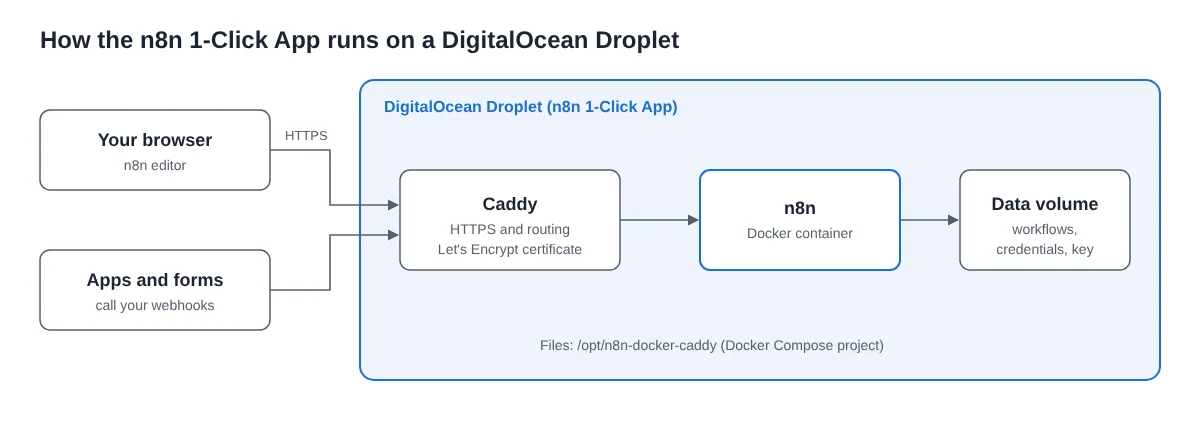
The 1-Click App is based on n8n’s official Docker and Caddy setup. Caddy is a web server that gets a free HTTPS certificate from Let’s Encrypt and passes requests to n8n. Everything lives in one Docker Compose project at /opt/n8n-docker-caddy, and your workflows and credentials are stored in a Docker volume that survives restarts and updates.
Step 1: Choose a Droplet size
| Droplet (Basic, regular CPU) | Specs | Price |
|---|---|---|
| 1 GB | 1 vCPU, 1 GB RAM, 25 GB SSD | $6/month (checked Oct 14, 2026) |
| 2 GB | 1 vCPU, 2 GB RAM, 50 GB SSD | $12/month (checked Oct 14, 2026) |
| 4 GB | 2 vCPU, 4 GB RAM, 80 GB SSD | $24/month (checked Oct 14, 2026) |
Which one? Skip the 1 GB size: n8n plus Docker and Caddy leave very little memory free, and workflows fail when memory runs out. Choose 2 GB for a handful of simple workflows, and 4 GB if you run AI agents, process files or expect many workflows to fire at once. You can resize the Droplet later from its dashboard.
DigitalOcean bills by the hour up to the monthly price, so a test server you delete after an hour costs a few cents. New accounts are often offered free trial credit; check the current offer when you sign up.
See DigitalOcean Droplet plansStep 2: Create the n8n Droplet
- Log in to DigitalOcean and open the n8n 1-Click App from the Marketplace. It opens the Create Droplet page with the n8n image already selected.
- Region: pick the one closest to you or your users, such as New York, London or Frankfurt.
- Size: choose Basic, Regular, and the 2 GB or 4 GB option from step 1.
- Authentication: choose SSH key if you have one, otherwise a strong root password. An SSH key is safer.
- Backups: tick automated backups. They add a percentage of the Droplet’s price each month and are the simplest way to recover from a mistake.
- Give the Droplet a name such as
n8nand click Create Droplet.
After about a minute the Droplet shows a public IPv4 address. Copy it.
Step 3: Point a subdomain at the Droplet
At your domain’s DNS provider, add an A record:
- Name:
n8n - Value: the Droplet’s IP address
- If your DNS is on Cloudflare, set the record to DNS only (grey cloud), so Caddy can get its certificate directly.
DNS changes usually take a few minutes. Do this before the next step, because the setup asks for your domain and Caddy needs the record in place to issue the certificate.
Step 4: Finish the setup in the console
Connect to the Droplet over SSH, or click Console on the Droplet’s page in DigitalOcean:
ssh root@YOUR_DROPLET_IPOn first login, the console shows the 1-Click App’s setup steps. Follow them as shown; they configure your domain and subdomain (such as yourcompany.com and n8n) and an email address for the HTTPS certificate, then start n8n. If the prompts differ from this, follow what the console says: DigitalOcean updates the app from time to time.
When it is done, open https://n8n.yourcompany.com in your browser. The first visit asks you to create the owner account:
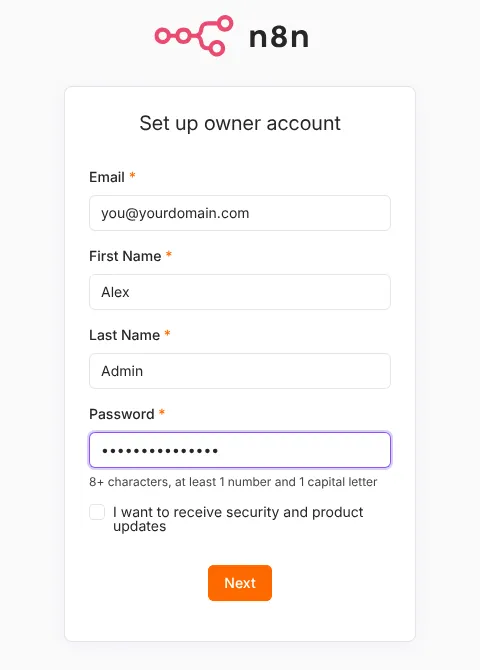
Use a real email and a strong password, since this page is on the public internet and the owner account controls every workflow and credential.
Step 5: Check that webhooks use your domain
Create a test workflow, add a Webhook node and look at its Production URL. It should start with your subdomain:
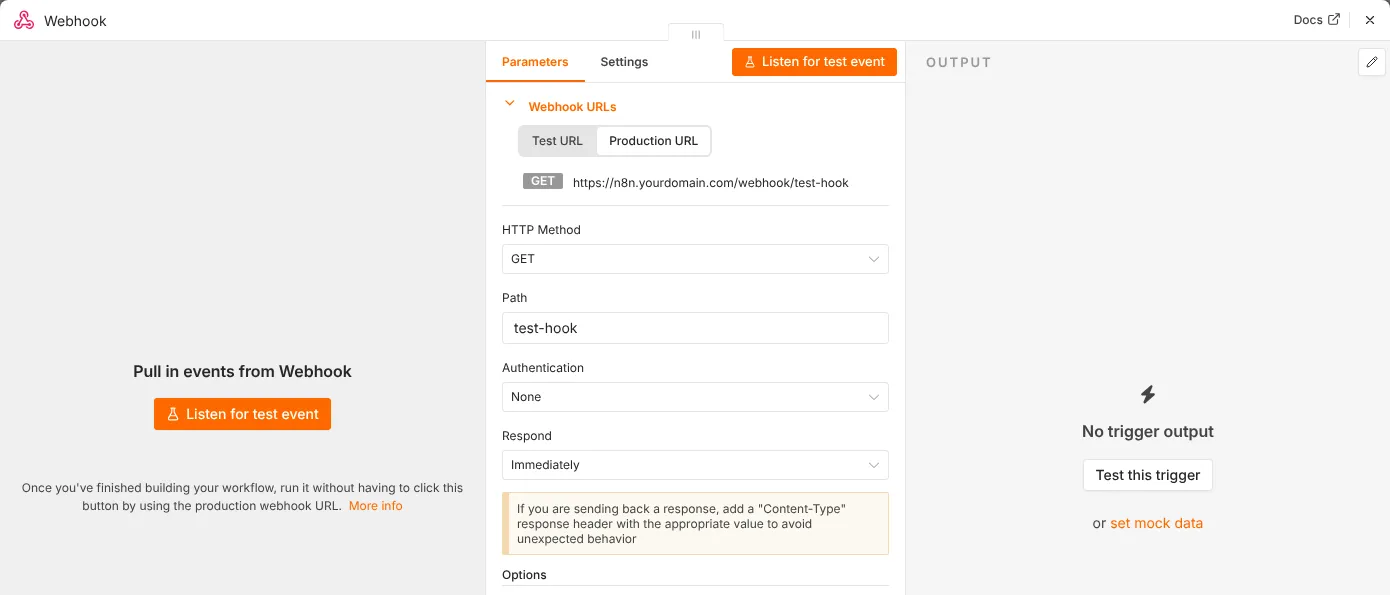
If it shows localhost or the IP address, the domain settings from step 4 did not apply. Check the .env file in /opt/n8n-docker-caddy for your domain, then restart with docker compose up -d from that folder.
Step 6: Set your time zone
Scheduled workflows follow the server’s time zone. In /opt/n8n-docker-caddy, open the .env file and set GENERIC_TIMEZONE to your own time zone name, for example Europe/London:
cd /opt/n8n-docker-caddy
nano .env
docker compose up -d
If your .env file has no time zone line, add one, save, and restart as shown.
Step 7: Update n8n
The 1-Click App installs the latest stable n8n at creation time but does not update itself. Every few weeks, read n8n’s release notes, then run:
cd /opt/n8n-docker-caddy
docker compose pull
docker compose down
docker compose up -d
Your workflows and credentials stay in the Docker volume. Take a snapshot first (Droplet, Snapshots, Take Live Snapshot) so you can roll back if a new version causes problems.
Step 8: Secure and back up the Droplet
- Firewall: in DigitalOcean, create a Cloud Firewall that allows only ports 22, 80 and 443, and apply it to the Droplet.
- SSH: use an SSH key and disable password login once the key works.
- Backups and snapshots: keep automated backups on, and take a snapshot before each update.
- Encryption key: n8n encrypts saved credentials with a key in its data folder. Backups and snapshots include it; a copy of your workflows without it cannot read your credentials.
- Export workflows: download important workflows as JSON from the editor now and then, so you also have a copy off the server.
Is DigitalOcean a good choice for n8n?
Strengths
- 1-Click App with automatic HTTPS
- Monthly, hourly billing with no long contract
- Easy resizing, snapshots and firewalls
- Clear documentation and a large community
Weaknesses
- Less RAM for the money than some hosts
- Backups cost extra
- You update n8n yourself
- 1 GB size is too small for n8n
DigitalOcean costs more per gigabyte of RAM than Hostinger, but it bills monthly with no upfront term, which suits testing and anyone who wants to cancel at any time. If you prefer the lowest monthly price on a longer term, see our guide to n8n on a Hostinger VPS. For any other Ubuntu server, follow the general Docker guide. Unsure whether to self-host at all? Compare it in n8n Cloud vs self-hosted, and check n8n pricing explained for the Cloud alternative.
Get started on DigitalOceanFrequently asked questions
Is n8n on DigitalOcean free?
n8n itself is free to self-host with the Community Edition. You pay DigitalOcean only for the Droplet, plus backups if you turn them on.
Can I use the 1 GB Droplet?
It may start, but there is too little memory for reliable use once a few workflows run. Start with 2 GB.
Can I run n8n on DigitalOcean App Platform instead of a Droplet?
It is possible, but App Platform needs a separate database and more configuration. A Droplet with the 1-Click App is simpler and cheaper for most people.
Where are the n8n files on the Droplet?
The Docker Compose project is in /opt/n8n-docker-caddy, which holds the compose file and the .env settings file.
How do I move from n8n Cloud to my Droplet?
Export each workflow as JSON from n8n Cloud, import it into your new instance, recreate your credentials, and update the webhook URLs in the apps that call them. The steps are in n8n Cloud vs self-hosted.
Sources: DigitalOcean n8n 1-Click App documentation, DigitalOcean Droplet pricing, n8n Docker Compose setup.
Get the free workflow template pack
Tested n8n workflows you can import in one click, plus a short email when new templates and comparisons go live.