n8n database too big? Pruning, VACUUM and disk space, tested
By the TestedFlows team · Published November 7, 2026
Tested on n8n 2.43.5 · 6 November 2026
This page contains affiliate links. If you sign up through them we may earn a commission, at no extra cost to you. How we make money.
A full disk is one of the most common ways a self-hosted n8n instance dies, and the database is usually the reason. We measured exactly how fast it grows and what each setting changes, on self-hosted n8n 2.43.5 with its default SQLite database on 6 November 2026.
What we measured
We published a workflow that receives a webhook and builds 1,000 rows of lead data in a Code node, which is typical of an import or sync job, and ran it 200 times. Then we ran a copy set not to save successful runs 200 times, pruned the database down to 20 executions, and finally ran VACUUM:
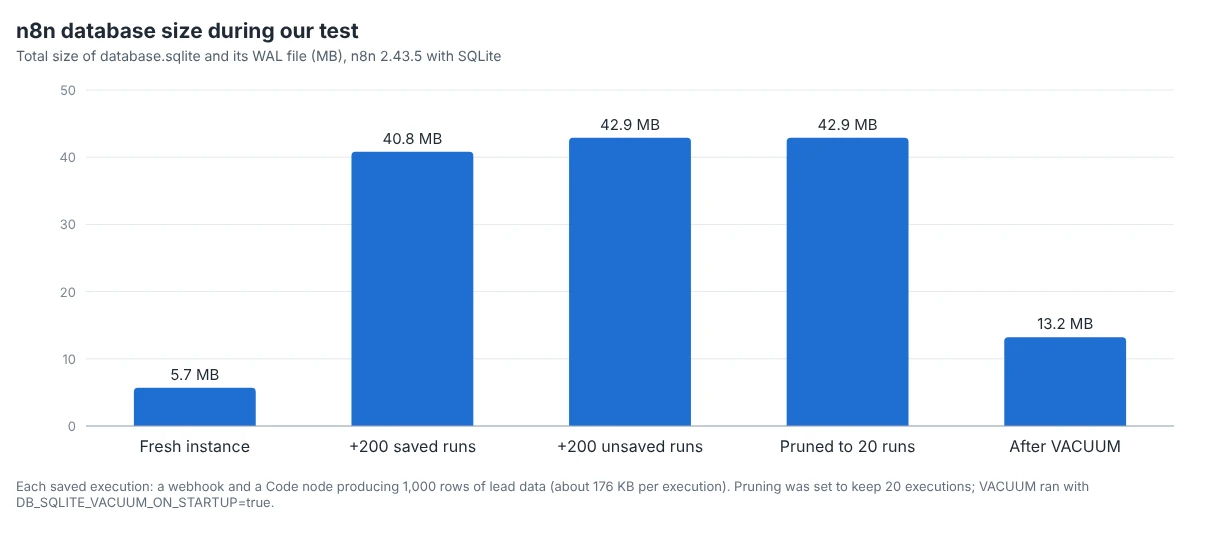
| Step | Database size | What it shows |
|---|---|---|
| Fresh instance | 5.7 MB | Starting point |
| After 200 saved executions | 40.8 MB | About 176 KB per execution |
| After 200 executions not saved | 42.9 MB | Unsaved runs add almost nothing |
| After pruning to 20 executions | 42.9 MB | Deleted data does not free disk space |
| After VACUUM | 13.2 MB | Space returned to the disk |
The size of each execution depends on how much data passes through your nodes. Ours carried 1,000 rows; a workflow that handles one form submission saves far less, and one that moves files or large API responses saves more.
Why the database keeps growing
By default, n8n saves the full input and output of every node for every execution, successful or failed, so you can open any run under Executions and see what happened. It then deletes old executions automatically, but only when one of two limits is reached:
| Setting | Default | Meaning |
|---|---|---|
EXECUTIONS_DATA_PRUNE |
true |
Automatic deletion is on |
EXECUTIONS_DATA_MAX_AGE |
336 (hours) |
Delete executions older than 14 days |
EXECUTIONS_DATA_PRUNE_MAX_COUNT |
10000 |
Keep at most 10,000 executions |
With executions the size of ours, 10,000 saved executions would be about 1.7 GB. A workflow that runs every minute reaches 10,000 executions in about a week, so the 14-day limit never applies. On a VPS with a 25 to 50 GB disk, a few busy workflows like this can fill a meaningful part of it.
Step 1: check how big your database is
On a Docker Compose setup, run this from your n8n folder:
docker compose exec n8n ls -lh /home/node/.n8n
df -h /
With SQLite, look at database.sqlite and database.sqlite-wal; together they are your database. The n8nEventLog files next to them are capped: n8n rotates them at 10 MB each and keeps three by default. df -h / shows how much space is left on the server’s disk.
If you use PostgreSQL, ask the database instead:
SELECT pg_size_pretty(pg_database_size('n8n'));Step 2: stop saving runs you never look at
The biggest saving is not storing successful runs at all. In our test, 200 unsaved executions added only about 2 MB, compared with 35 MB for 200 saved ones, while the workflow did exactly the same work.
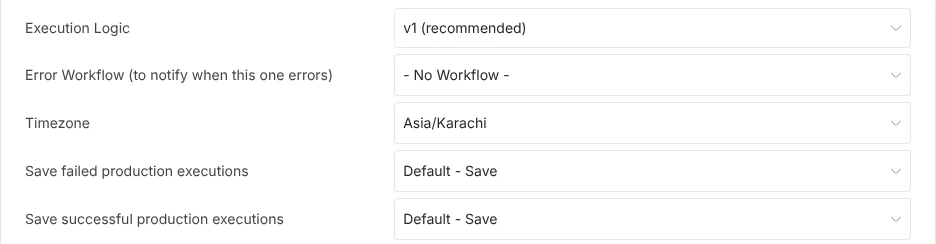
For one workflow: open the workflow’s ⋯ menu, choose Settings, and set Save successful production executions to Do not save. Keep Save failed production executions on Save, so you can still see what went wrong when a run fails.
For the whole instance: add this to the environment section of your Compose file and run docker compose up -d:
- EXECUTIONS_DATA_SAVE_ON_SUCCESS=noneFailed executions are still saved by default. Individual workflows can still be set to save successful runs in their own settings, which is useful for the few workflows you need to audit. The trade-off: you can no longer open a successful run to see its data, so turn saving back on for a workflow while you build or debug it.
Step 3: lower the pruning limits
Keep fewer executions for less time. For example, 7 days and at most 5,000 executions:
- EXECUTIONS_DATA_MAX_AGE=168
- EXECUTIONS_DATA_PRUNE_MAX_COUNT=5000
Pruning is not instant. By default, n8n checks for old executions every 60 minutes, marks them as deleted, and removes them for good on a later pass after a one-hour buffer, so expect up to about two hours before the count drops. In our test, with the limit set to 20 and shorter intervals, n8n removed the other 180 executions within three minutes.
You can also delete executions by hand from a workflow’s Executions list, which is useful for clearing one large test run straight away.
Step 4: run VACUUM to get the disk space back (SQLite)
This is the step most guides miss. SQLite does not give space back to the disk when rows are deleted: it keeps the empty space inside the file for future data. After pruning removed 90% of our executions, database.sqlite was exactly the same size, with 32.6 MB of empty space inside it.
To shrink the file, tell n8n to run SQLite’s VACUUM command when it starts:
- DB_SQLITE_VACUUM_ON_STARTUP=trueThen restart with docker compose up -d. In our test, database.sqlite went from 38.5 MB to 6.0 MB, and n8n started in about 10 seconds. Two things to know:
- Take a backup first (see our safe update guide). VACUUM rewrites the whole database.
- VACUUM needs free disk space while it runs, up to twice the size of the database according to SQLite’s documentation, because it builds a new copy before replacing the old one. If the disk is already 100% full, free some space first, for example with
docker system pruneto remove unused Docker images.
On a large database, VACUUM makes every startup slower. A practical approach is to turn it on, restart once, and then remove the line again until the next cleanup.
On PostgreSQL, the database’s automatic vacuum reuses freed space, but the files on disk do not shrink. VACUUM FULL returns the space but locks the tables while it runs, so do it in a maintenance window with n8n stopped and a fresh backup.
Step 5: check files and binary data
Workflows that handle files (PDFs, images, email attachments) store that binary data separately. On a standard self-hosted setup it goes in the storage folder inside /home/node/.n8n, and it is cleaned up together with the executions it belongs to. If that folder is large, the same steps apply: save fewer runs and prune sooner.
A good starting configuration
For a typical small-business instance on a single VPS, this keeps the database small without losing what you need for debugging:
- EXECUTIONS_DATA_SAVE_ON_SUCCESS=none
- EXECUTIONS_DATA_MAX_AGE=168
- EXECUTIONS_DATA_PRUNE_MAX_COUNT=5000
Then enable DB_SQLITE_VACUUM_ON_STARTUP=true for one restart whenever the file has grown much larger than you expect. Check disk space monthly with df -h / as part of your maintenance routine.
If you are choosing a server, our VPS comparison lists the disk size of each plan.
Try n8n Cloud freeFrequently asked questions
Why is my n8n database so large?
Because n8n saves every node’s input and output for every execution by default, and keeps up to 10,000 executions or 14 days of them. Workflows that run often or move a lot of data fill it fastest.
Does deleting executions make the SQLite file smaller?
No. In our test, deleting 180 of 200 executions left the file the same size. Run VACUUM, for example with DB_SQLITE_VACUUM_ON_STARTUP=true, to shrink it.
Is it safe to stop saving successful executions?
Yes, for workflows that work reliably. The workflows still run; only the record of successful runs is not kept. Failed runs are still saved by default, so you can debug problems.
Can I delete database.sqlite to start fresh?
Only if you are willing to lose everything: workflows, credentials, users and settings are all in that file. Export your workflows first, and see our encryption key guide before moving credentials.
Should I switch to PostgreSQL?
Not because of size alone. Pruning and saving fewer executions keep SQLite small. PostgreSQL makes sense for queue mode, many concurrent executions, or a team that already runs Postgres.
How we tested: on 6 November 2026 we ran self-hosted n8n 2.43.5 with SQLite and default settings, ran 400 executions of a 1,000-row workflow (half saved, half not), then restarted with a pruning limit of 20 executions and, after that, with DB_SQLITE_VACUUM_ON_STARTUP=true. Sizes were read from the database files and execution counts from n8n’s own execution list.
Sources: n8n: manage execution data, n8n environment variables for executions, SQLite VACUUM.
Get the free workflow template pack
Tested n8n workflows you can import in one click, plus a short email when new templates and comparisons go live.