How to Update Self-Hosted n8n Safely (2026): Backup & Rollback
By the TestedFlows team · Published October 25, 2026
The short answer: For a Docker Compose installation, first identify your current n8n version and its data stores, read the release and migration notes, take a recoverable backup, change only the n8n image to a known stable version, then run docker compose pull n8n and docker compose up -d --no-deps n8n. Check the editor, credentials, scheduled runs and production webhooks before declaring success. If the update migrated the database, recovery means restoring the pre-update data together with the previous application version, not just downgrading the image.
This guide applies to self-hosted n8n on a Linux VPS using Docker Compose. It builds on our Docker setup guide and n8n security checklist. If you use n8n Cloud, use the managed update process instead.
Verification status (25 October 2026). The commands and safety guidance below have been cross-checked against n8n’s official update, Docker and backup and restore documentation. No live production upgrade or successful restoration is claimed in this article. Test the procedure on your own staging copy before using it in production.

Editorial illustration; not evidence of a hands-on test.
The safe update checklist
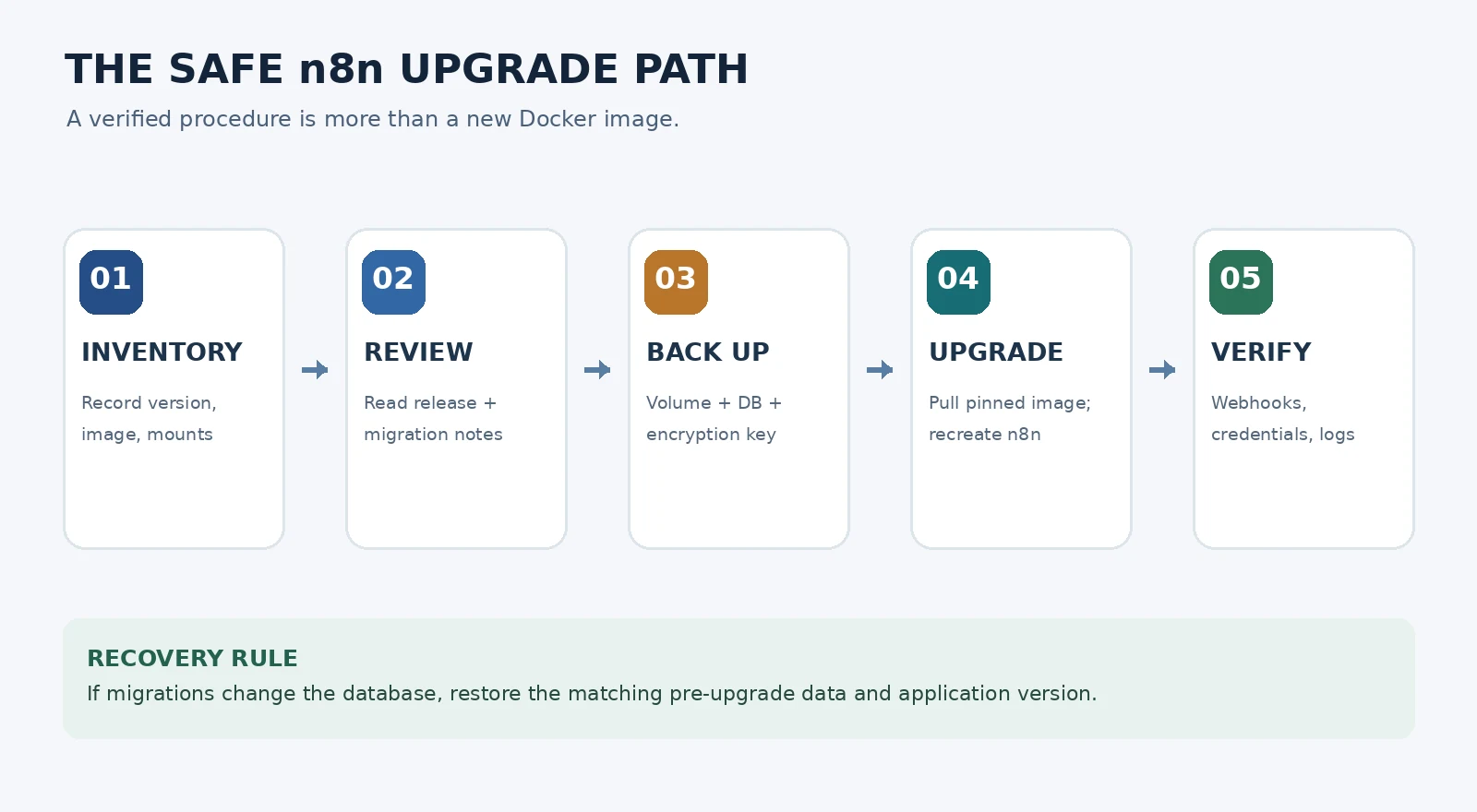
| Step | Required evidence before moving on |
|---|---|
| Inventory | Current version, existing image, storage mounts and database identified |
| Review | Target version approved; breaking changes and maintenance window checked |
| Back up | .n8n data, encryption key, external DB/storage, configuration accounted for |
| Upgrade | Pinned n8n image pulled and application recreated without upgrading Postgres |
| Verify | Editor, credentials, key workflows, webhooks, logs and scheduled executions checked |
Do not begin if you cannot identify which storage volume contains /home/node/.n8n, cannot locate the encryption key, or have not verified a usable database backup.
1. Inspect the running installation
SSH into your VPS, change into the folder containing compose.yaml, and record the current state:
cd ~/n8n                        # replace with your actual Compose directory
docker compose ps
docker compose exec -T n8n n8n --version
docker compose config --images
If you used our installation guide, the Compose service is named n8n. Otherwise substitute your actual service name. docker compose config --images prints the resolved image references without dumping the full Compose configuration, which may contain secrets.
Next, inspect how the running container stores data:
docker inspect "$(docker compose ps -q n8n)" \
  --format '{{range .Mounts}}{{println .Type .Name .Source .Destination}}{{end}}'
Find the line whose destination is /home/node/.n8n. A named volume has type volume and a name such as n8n_n8n_data; a bind mount has type bind and points to a host folder. Record that exact value; don’t assume everybody’s volume is called n8n_n8n_data.
Also check whether n8n uses the built-in SQLite database or PostgreSQL. In your Compose file, DB_TYPE=postgresdb means PostgreSQL. Without a database override, n8n normally uses SQLite. Managed database services and external object storage must be covered separately.
Scope: The commands below assume a single n8n Compose service. If you use queue mode, multiple workers, a separate task runner, or multiple main processes, coordinate all services and follow the official scaling guidance rather than using this single-container sequence unchanged.
2. Pick the update version deliberately
Before changing anything, read the n8n releases, release notes and breaking changes. Consider the releases between your installed version and your proposed target, not merely the newest release.
As checked on 25 October 2026, the official release list identifies 2.44.6 as stable (released 22 October); the 2.45 series is on the prerelease channel. This is a dated example, not a version recommendation for all future readers. Always verify the stable version when you perform the update.
For a reproducible deployment, prefer a numbered tag over the moving stable or latest tag. In compose.yaml change only the image for the n8n service, for example:
services:
  n8n:
    image: docker.n8n.io/n8nio/n8n:2.44.6
    # Keep your existing environment, labels and volumes unchanged.
Use the registry your existing deployment uses and confirm the tag exists there. The image line above illustrates a tagged deployment; it is not a replacement for your complete Compose file. Docker Compose supports changing image versions through an .env variable as well—if your Compose file already uses ${N8N_VERSION}, update that variable rather than hard-coding a second location.
If you’re upgrading from n8n 1.x to 2.x, review the v2 breaking-changes guide and the Settings → Migration Report in an eligible earlier installation. Resolve flagged workflow and instance issues before moving a production environment. Make a staged upgrade first, particularly when your workflows use community nodes, filesystem operations, or custom Code nodes.
3. Back up all the data, not just the workflows
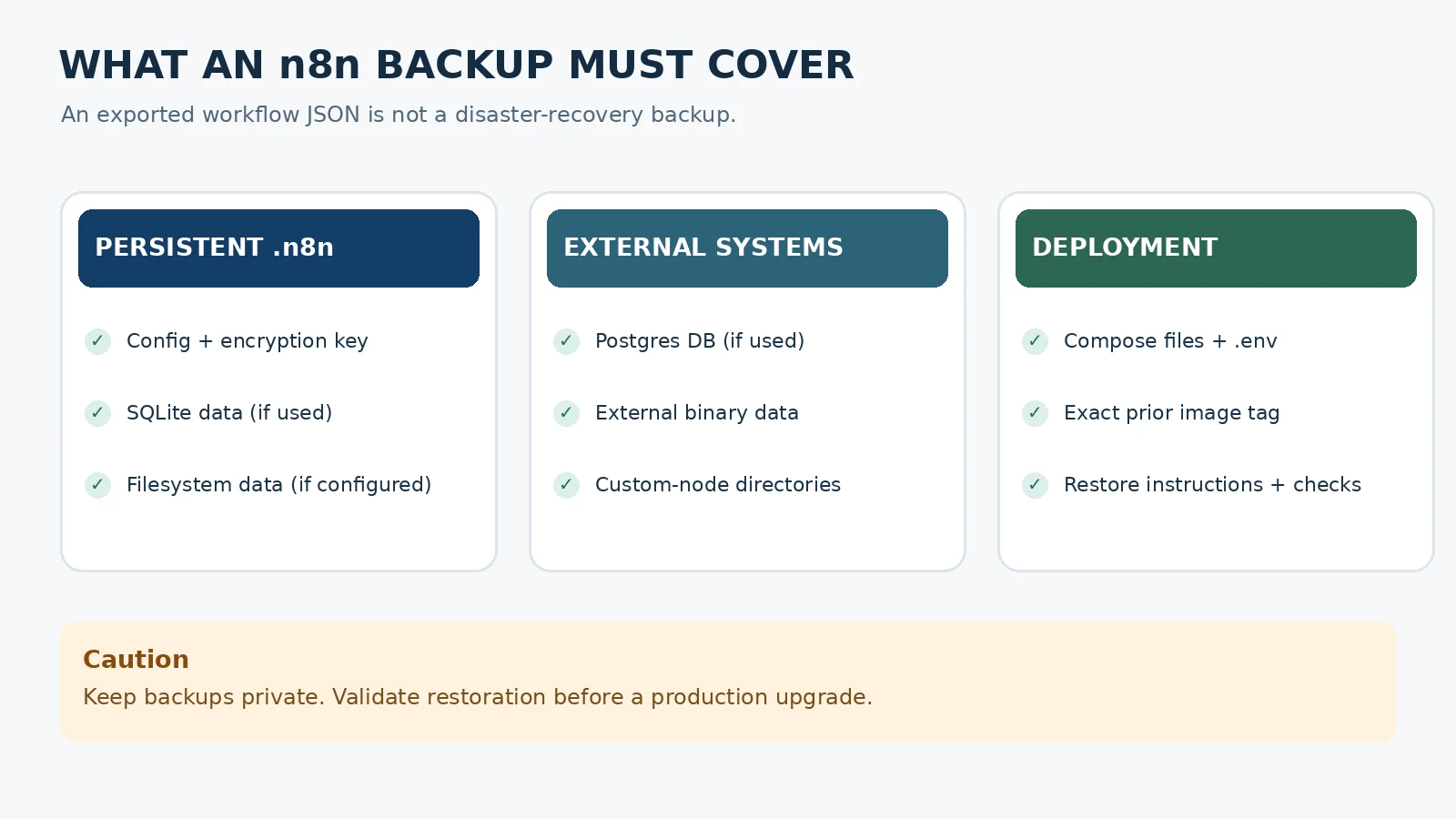
n8n’s official recovery documentation distinguishes a complete instance backup from CLI exports. The latter export workflows and credentials but do not include users, permissions, execution history, variables, instance settings or the encryption key. For incident recovery, you need the relevant database and its original encryption key.
| Installation | Minimum backup set |
|---|---|
| SQLite (default) | A consistent copy of the .n8n data folder/volume, plus Compose settings and custom/external data |
| PostgreSQL | A database dump and .n8n folder/volume, plus Compose settings and custom/external data |
| External binary/object storage | All of the above and the external storage data/configuration |
Create a private backup directory
The examples use a dedicated folder outside the Git repository:
BACKUP_DIR="$HOME/n8n-backups/$(date +%F-%H%M)"
mkdir -p "$BACKUP_DIR"
chmod 700 "$BACKUP_DIR"
Copy your actual Compose file and .env to this private location before editing the version. Adapt the name if yours is compose.yml or docker-compose.yml:
cp compose.yaml "$BACKUP_DIR/compose.yaml"
cp .env "$BACKUP_DIR/env.backup"   # if present
chmod 600 "$BACKUP_DIR"/*
Security: .env, the .n8n configuration and backups may contain credentials or the encryption key. Keep them out of Git, public downloads and shared support tickets. Store an additional encrypted copy off the VPS.
Stop n8n before copying SQLite
Choose a maintenance window. For SQLite, a raw copy while n8n is writing to its database may be inconsistent; n8n’s documentation explicitly says to stop it first. Stopping the app is also a good way to avoid new writes during a coordinated PostgreSQL backup.
docker compose stop n8nNamed-volume example: If the inspection in step 1 showed a Docker named volume, substitute its exact name in the next command. This is intentionally not a copy-paste command until you replace ACTUAL_N8N_VOLUME_NAME.
docker run --rm \
  --mount type=volume,source=ACTUAL_N8N_VOLUME_NAME,target=/source,readonly \
  --mount "type=bind,source=$BACKUP_DIR,target=/backup" \
  alpine:3.21 \
  tar -czf /backup/n8n-data.tar.gz -C /source .
For a bind mount, back up the host directory shown by docker inspect instead of running the named-volume example. Include other custom data paths and any user-defined extension directories.
If your n8n uses PostgreSQL in the same Compose project, with a service named postgres, also create a consistent database dump while n8n remains stopped:
docker compose exec -T postgres sh -c \
  'pg_dump -U "$POSTGRES_USER" -d "$POSTGRES_DB" -Fc' \
  > "$BACKUP_DIR/postgres.dump"
That command assumes the Postgres container has pg_dump and the standard POSTGRES_USER / POSTGRES_DB environment variables. If your database is managed or named differently, use that database’s documented backup mechanism. Don’t skip the database dump just because you saved the n8n Docker volume.
Check the resulting files exist and have non-zero size before proceeding:
ls -lh "$BACKUP_DIR"
tar -tzf "$BACKUP_DIR/n8n-data.tar.gz" | head -20
# If Postgres was backed up:
# pg_restore --list "$BACKUP_DIR/postgres.dump" | head -20
An archive that can be listed is not proof that it restores. The real acceptance test is restoring to an isolated staging instance with the same encryption key, opening credentials and confirming workflows and execution data. Do that before a high-stakes production upgrade.
Optional: Export workflows as a second layer
n8n also provides export:workflow and export:credentials via the server CLI. They are useful portable recovery artifacts, but not replacements for a complete database backup. Make sure export files are copied outside the container before you recreate it. Avoid --decrypted credential exports unless you have a secure, deliberate need: they expose secrets in plain text.
4. Update only the n8n service
After confirming the backups, edit the n8n version in compose.yaml or your existing .env version variable. Then run:
docker compose config --images
docker compose pull n8n
docker compose up -d --no-deps n8n
docker compose ps
Here, pull n8n downloads only n8n’s image and up -d --no-deps n8n recreates the n8n service without also updating or restarting PostgreSQL and the reverse proxy. This is deliberately more targeted than docker compose pull for every service: upgrading your database engine in the same maintenance window introduces a separate migration risk.
Never use docker compose down -v as an update step. The -v option removes attached named volumes and can destroy the data the tutorial is trying to protect.
Watch the logs and then check the running version:
docker compose logs --tail=100 n8n
docker compose exec -T n8n n8n --version
If you kept n8n stopped during the backup, up -d starts it. Allow time for application and schema migrations; don’t interrupt the process just because first startup takes longer than usual. If logs report migration failures, stop and use your recovery plan rather than repeatedly restarting blindly.
5. Verify the application, not just the container
A green docker compose ps status alone is not enough. Use this post-update verification checklist:
- Access: Open your normal HTTPS URL and sign in. Check the version in the application and compare it with the CLI output.
- Credentials: Open a workflow using a non-sensitive test credential and verify that its authentication still works. A credential-decryption error can indicate a missing or changed encryption key.
- Manual workflow: Execute a harmless test workflow and inspect its inputs, outputs and run record.
- Webhooks: Call a test endpoint deliberately and confirm the expected response and execution. Do not replay customer orders or trigger production side effects just for a smoke test.
- Schedules and triggers: Check upcoming scheduled runs and integrations that use external subscriptions or polling.
- Observability: Review error logs, execution failures and memory pressure during the first monitoring window.
For setups exposing the standard local health endpoint, a useful extra check is:
curl -fsS http://127.0.0.1:5678/healthzThat command assumes the host exposes the service on port 5678 locally, as in our Docker setup. If n8n is only reachable inside its Docker network, use the appropriate internal endpoint instead. Health checks confirm availability, not that every workflow or credential still works.
6. Roll back safely if verification fails
Key distinction: Reverting an image tag rolls back application code; it does not undo database migrations already applied by the newer release. A schema modified by the new version may not be readable by the old version. If you’re recovering from a failed migration, restore the matching pre-update snapshot of both database and .n8n data, along with the original encryption key and deployment configuration.
Before any restore, stop n8n and preserve the failed state separately for troubleshooting. Don’t overwrite the only copy of a database. Follow n8n’s full-instance restore procedure and test the recovery on a separate copy if possible.
If you use SQLite
Restore the pre-update .n8n volume or host folder—including the database.sqlite file and original encryption key—into an empty recovery volume or recovery directory. Keep the existing volume untouched until the restored copy is checked. Then point a Compose staging instance at the recovery data, select the exact pre-update n8n image, and verify it works before replacing your production routing.
For example, to extract a backed-up named volume to a new Docker volume without touching the original:
docker volume create n8n_recovery_test

docker run --rm \
  --mount type=volume,source=n8n_recovery_test,target=/restore \
  --mount "type=bind,source=$BACKUP_DIR,target=/backup,readonly" \
  alpine:3.21 \
  tar -xzf /backup/n8n-data.tar.gz -C /restore
This command only prepares recovered data; it does not automatically switch your application to that volume or prove a successful recovery. Attach it to an isolated copy of your Compose deployment (with production webhooks and schedules disabled), using the original configuration and image tag. On a shared VPS, never run both copies against the same live database.
If you use PostgreSQL
Restore both your pre-update PostgreSQL dump and the .n8n volume into isolated recovery resources. The database must be restored using PostgreSQL’s documented tools and the original database configuration; use the same encryption key or you will be unable to decrypt n8n credentials. pg_restore can reconstruct a custom-format pg_dump archive, but options depend on your database ownership, extensions and schema. Do not run destructive --clean commands against the live database without a tested, environment-specific plan.
For both databases, keep the exact prior image tag and any custom-node package versions from the pre-update deployment. If a release introduces one-way migrations, restoring the full pre-update state is the safer recovery path than relying on a downgrade. n8n also exposes administrative migration commands, but those are not a substitute for a verified full restore plan.
| Situation | Safest response |
|---|---|
| New image fails before any DB migration | Inspect logs and configuration; image-only reversal may be possible, but verify the data was untouched |
| New image runs migration, workflows break | Restore paired pre-update database and .n8n data to the prior image |
| Credentials can’t decrypt | Verify the original encryption key and configuration before changing database state |
| An unrelated Postgres image changed too | Treat it as a separate database-major-version issue; recover or upgrade Postgres using its own procedure |
7. Common update mistakes
Pulling stable without reading the release notes
A moving tag gives you whichever release it points to when you pull. Pin a numbered release and evaluate the changes first. On 25 October 2026, the latest stable found in n8n’s official GitHub releases was 2.44.6; re-check on your own update date.
Backing up workflows but forgetting the encryption key
Workflow JSON exports don’t preserve user accounts and database execution history, and encrypted credentials need the same key to be usable. Back up the .n8n data even if PostgreSQL stores your main application records.
Copying SQLite while n8n is active
n8n warns that copying SQLite files during writes can be inconsistent. Stop the application first or use a proven database-aware snapshot tool.
Upgrading Postgres alongside n8n
Avoid unintentionally pulling and recreating the entire stack. An n8n maintenance change should not automatically become a PostgreSQL major-version upgrade.
Treating a successful startup as proof of a successful upgrade
The editor can load while a workflow, webhook, OAuth refresh or scheduled execution fails. Run a small, non-destructive smoke test suite after every update.
Frequently asked questions
Will updating n8n delete my workflows?
Not as part of the intended Docker update process, provided your persistent data is mounted correctly and retained. But data loss remains possible if a volume is accidentally removed, a migration fails or a backup proves unusable. Verify mounts and take a complete backup first.
What Docker commands update n8n in Compose?
After reviewing the target version and taking backups, use docker compose pull n8n followed by docker compose up -d --no-deps n8n, assuming your service is named n8n. The exact image tag should already be set in your Compose configuration.
Can I roll back n8n by changing the image version?
Only when the data remains compatible with that version. If an upgrade ran database migrations, changing the image alone may fail. Restore a matching pre-upgrade database, .n8n folder, encryption key and original configuration.
Is a workflow JSON export enough for disaster recovery?
No. It lacks users, execution history, variables and instance settings. Use the official full backup guidance for your database and storage layout.
How often should I update a self-hosted n8n instance?
n8n’s update guidance suggests updating regularly—roughly monthly rather than skipping many releases. Always balance security fixes and compatibility checks with a maintenance window and tested recovery plan.
Does the same guide apply to Hostinger and DigitalOcean one-click n8n?
The principles apply, but not necessarily these exact commands. One-click deployments can use different Compose directories, service names, reverse proxies and backup facilities. Inspect the real installation first. See our Hostinger VPS guide and DigitalOcean guide for their deployment layouts.
Sources and verification notes
Primary sources checked on 25 October 2026: n8n updating, full backup and restore, install with Docker, CLI commands, encryption key, v2 breaking changes, GitHub releases, Docker Compose variable interpolation and PostgreSQL pg_dump.
Editorial testing disclosure: This is a documentation-verified maintenance guide, not a report of a completed TestedFlows staging or production update. The two charts are original explanatory diagrams and the featured server image is an editorial illustration—not screenshots of an n8n installation. No success, restore time, downtime, or benchmark has been invented. We will add an environment-specific, reproducible test log and real n8n screenshots when such tests have been performed.
Get the free workflow template pack
Tested n8n workflows you can import in one click, plus a short email when new templates and comparisons go live.