n8n encryption key errors: mismatching keys and lost credentials
By the TestedFlows team · Published November 6, 2026
Tested on n8n 2.43.5 · 5 November 2026
This page contains affiliate links. If you sign up through them we may earn a commission, at no extra cost to you. How we make money.
Encryption key errors are the most alarming n8n problems, because n8n either refuses to start or every workflow with a credential fails at once. We reproduced all three versions on self-hosted n8n 2.43.5 on 5 November 2026: changing the key on a running instance, losing the key file, and moving credentials to a new server. We also tested each recovery path. Every message below is copied from those tests.
How n8n’s encryption key works
The first time n8n starts, it creates a random key and saves it in a file called config in its data folder:
No encryption key found - Auto-generating and saving to: /home/node/.n8n/configIn Docker, that folder is /home/node/.n8n inside the container, which lives in your n8n data volume. The file looks like this:
{
  "encryptionKey": "Bu7ygpqpM0FL8glFXXCrnihx5GiNPkv+"
}
Every API key, password and OAuth token you save in n8n is encrypted with that value. If you set N8N_ENCRYPTION_KEY as an environment variable, n8n uses it instead and writes it to the same file. Lose the key, or start n8n with a different one, and n8n can no longer read your credentials.
Which error do you have?
| Message | When it appears | Section |
|---|---|---|
| Mismatching encryption keys. The encryption key in the settings file … does not match the N8N_ENCRYPTION_KEY env var. | At startup; n8n does not start | 1 |
| Deployment key ‘signing.hmac’ cannot be read with this instance encryption key | At startup; n8n does not start | 2 |
| Credentials could not be decrypted. The likely reason is that a different “encryptionKey” was used to encrypt the data. | When a workflow runs, or during a credentials export | 3 |
1. Mismatching encryption keys
Error: Mismatching encryption keys. The encryption key in the settings file
/home/node/.n8n/config does not match the N8N_ENCRYPTION_KEY env var.
Please make sure both keys match.
What we saw: we stopped a working instance, added N8N_ENCRYPTION_KEY with a new value, and started it again. n8n refused to start and exited with this error. In Docker with restart: always, the container then restarts over and over, and the editor never loads.
Cause: the key in the config file and the key in N8N_ENCRYPTION_KEY are different. This usually happens when someone adds N8N_ENCRYPTION_KEY to an existing instance, copies a Compose file with an example key from a guide, or makes a typo when pasting the key.
Fix: make the environment variable match the file. Read the key from the data volume. This works even while the container is crashing (replace n8n_n8n_data with your volume name from docker volume ls):
docker run --rm -v n8n_n8n_data:/data alpine cat /data/configCopy the encryptionKey value into N8N_ENCRYPTION_KEY in your Compose file or .env file, then run docker compose up -d. Alternatively, remove the N8N_ENCRYPTION_KEY line and n8n will use the file again. In our test, starting the same instance with N8N_ENCRYPTION_KEY set to the value from the file worked straight away, and its credentials worked.
Do not delete or edit the config file to make the error go away. That turns this harmless error into the serious one in the next section.
2. signing.hmac cannot be read: the key was lost
Error: Deployment key 'signing.hmac' cannot be read with this instance encryption key
Exiting due to an error.
What we saw: we deleted the config file from a working instance and started it again, keeping its database. n8n generated a brand-new key, saw that the existing database was encrypted with a different one, and exited with this error. It would not start at all.
Cause: n8n is running with a new key on top of data encrypted with the old one. Typical ways this happens:
- The data volume or
.n8nfolder was deleted or recreated (for example withdocker compose down -v) while the database lived elsewhere, such as PostgreSQL. - A backup restored the database but not the
configfile or the key. - A server move copied the database but not the key.
Fix, if you can find the old key: this is the only way to keep your credentials. Look in your password manager, an old .env or Compose file, an old server or snapshot, a backup of the data volume, or a previous host’s settings. Set it as N8N_ENCRYPTION_KEY, or put it back in the config file, and restart. n8n starts normally, with every credential intact.
Fix, if the key is gone for good: the encrypted credentials cannot be recovered, but your workflows can. In our test, the workflow export still worked on the instance with the wrong key. Because n8n will not start, stop the crashing container and run the export in a one-off container from the same Compose service:
docker compose stop n8n
docker compose run --rm n8n export:workflow --all --output=/home/node/.n8n/workflows-backup.json
The official image passes these arguments to the n8n command, so there is no second n8n in the line. The file is saved in your data volume. Then start a fresh n8n instance with a new data folder, import the workflows from the n8n editor or with n8n import:workflow, and create each credential again. Trying to export the credentials themselves failed in our test with the error from section 3.
3. Credentials could not be decrypted
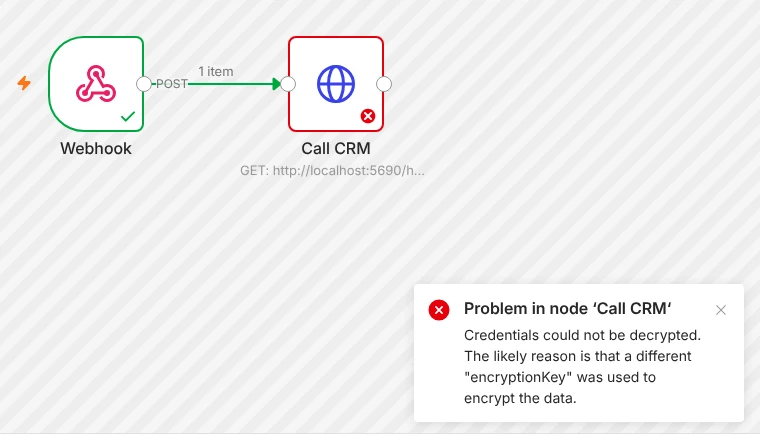
Credentials could not be decrypted. The likely reason is that a different
"encryptionKey" was used to encrypt the data.
What we saw: we exported the credentials from one instance with n8n export:credentials --all, imported them into a second, new instance with its own key, and ran a workflow that used them. n8n started normally, but the workflow failed at the first node that used a credential, with this message.
The credential itself gave no warning. When we opened it in the editor, its fields were simply empty:
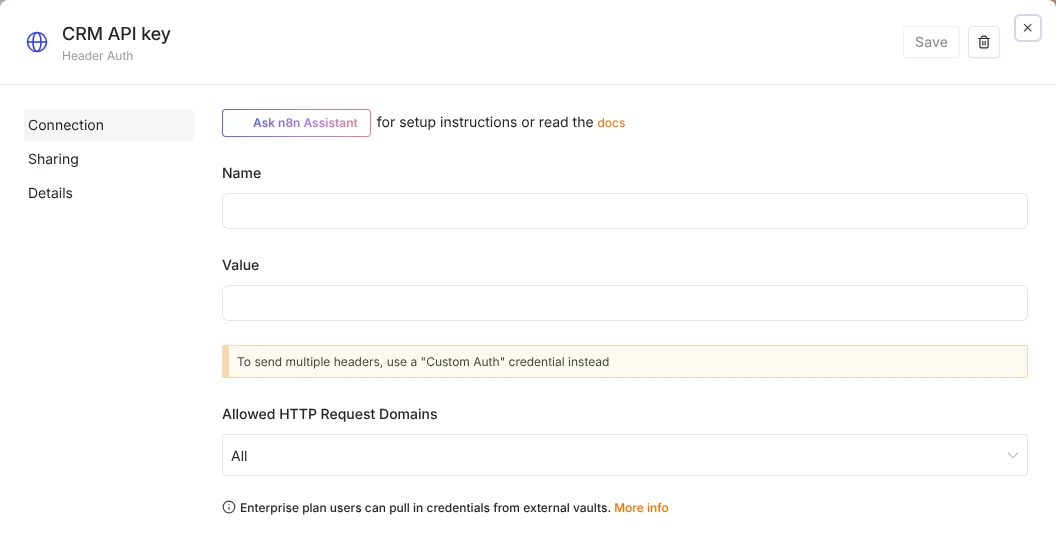
Cause: a normal credentials export stays encrypted with the old instance’s key. The new instance cannot read it.
Fix, option A: use the old key on the new instance. Set N8N_ENCRYPTION_KEY to the old instance’s key before the new instance starts for the first time, then import the encrypted export. In our test, a new instance started this way ran the imported workflow and credential without errors. If the new instance has already started with its own key, you get the error from section 1 instead, so set the key first or start again with an empty data folder.
Fix, option B: export the credentials decrypted. On the old instance, export them in plain text, then import them into the new one, which encrypts them with its own key:
# on the old instance
docker compose exec n8n n8n export:credentials --all --decrypted --output=/home/node/.n8n/creds.json
# copy creds.json to the new server, then
docker compose exec n8n n8n import:credentials --input=/home/node/.n8n/creds.json
In our test, importing the decrypted file over the broken credential fixed it, and the workflow ran. The decrypted file contains every password and API key in readable text: in our test, the header value appeared as plain text in the JSON. Copy it over a secure connection such as scp, and delete it from both servers straight after the import.
Fix, option C: enter the credentials again. For a handful of credentials, opening each one and pasting the secret again is often quickest.
Moving n8n to a new server without key errors
The safest move is to take the key with you:
- On the old server, read the key (
docker compose exec n8n cat /home/node/.n8n/config) and save it in a password manager. - On the new server, put
N8N_ENCRYPTION_KEY=<that key>in the Compose or.envfile before the first start. - Restore the data volume or database backup, or import your encrypted exports.
- Start n8n and run one workflow that uses a credential.
Our safe update guide covers backing up the data volume, and the security checklist covers storing backups off the server. The DigitalOcean and Hostinger templates store the key in the same place; see our guides to n8n on DigitalOcean and n8n on Hostinger for where their Compose files live.
How to prevent this for good
- Set the key explicitly. Copy the current key from the
configfile intoN8N_ENCRYPTION_KEYin your.envfile. Then the key is visible in your setup and is not lost if the volume is recreated. For a brand-new instance, generate one first withopenssl rand -hex 32. - Store the key outside the server, in a password manager. A backup without the key cannot restore your credentials.
- Keep the key out of Git and out of screenshots and support tickets. Anyone with the key and your database can read every credential.
- Never run
docker compose down -von an n8n stack. The-vdeletes the data volume, including the key file. - Test a restore once on a spare server, including one workflow with a credential.
Frequently asked questions
Where is the n8n encryption key stored?
In the config file in n8n’s data folder: /home/node/.n8n/config in Docker, or ~/.n8n/config for an npm install. If N8N_ENCRYPTION_KEY is set, that value is used and saved to the same file.
Can I change the n8n encryption key?
Not by editing the value. A new key cannot read credentials encrypted with the old one. To move to a new key, export the credentials with --decrypted, start an instance with the new key and import them, then delete the decrypted file.
Can I recover credentials without the encryption key?
No. The encryption is designed so that the data cannot be read without the key. You can still export and keep your workflows, and enter the credentials again.
Do workflow exports need the encryption key?
No. In our test, n8n export:workflow worked even when n8n had the wrong key. Workflows refer to credentials by name and ID, so after importing them into a new instance you only need to recreate or import the credentials.
Does n8n Cloud have these problems?
n8n Cloud manages the key for you, so the startup errors in sections 1 and 2 do not apply there. When you move workflows from Cloud to a self-hosted instance, plan to enter the credentials again on the new instance.
How we tested: on 5 November 2026 we ran self-hosted n8n 2.43.5 with SQLite, created a Header Auth credential used by a published workflow, then changed the key, deleted the key file, and moved encrypted and decrypted credential exports between three instances. Each error message and each fix above is from those runs.
Sources: n8n: set a custom encryption key, n8n CLI commands.
Get the free workflow template pack
Tested n8n workflows you can import in one click, plus a short email when new templates and comparisons go live.