n8n Schedule Trigger not working? 8 causes we tested (2026)
By the TestedFlows team · Published October 29, 2026
Tested on n8n 2.43.5 · 28 October 2026
This page contains affiliate links. If you sign up through them we may earn a commission, at no extra cost to you. How we make money.
Schedule problems are hard to debug because nothing happens: no error, no execution, just a report that never arrives. To find out exactly how n8n behaves, we set up ten scheduled workflows on a self-hosted n8n 2.43.5 instance on 28 October 2026, with different timezone settings, a broken cron expression, unpublished and unsaved workflows, and a server we stopped on purpose. Here is what we found, cause by cause.
Quick checklist
| Symptom | Most likely cause | Section |
|---|---|---|
| Runs, but hours early or late | Default timezone is New York | 1 |
You set TZ and it is still wrong |
n8n ignores TZ for schedules |
2 |
| Never runs automatically | Workflow not published | 3 |
| Red dot on the Publish button | Trigger failed to start, often a bad cron | 4 |
| Runs missing for a period | n8n was down or restarting | 5 |
| Nothing in Executions, but the work happened | Successful runs are not saved | 6 |
| “Every minute” runs at :44 seconds, not :00 | Normal behaviour | 7 |
| Runs, but a later step fails | Problem in another node | 8 |
1. The schedule runs at the wrong hour
What we saw: on an instance with no timezone setting, we created three workflows with a cron expression for the same moment written in three timezones: 12:33 UTC, 08:33 New York and 17:33 Pakistan time. Only the New York one ran. When we ran the trigger by hand, its output confirmed the timezone n8n was using:
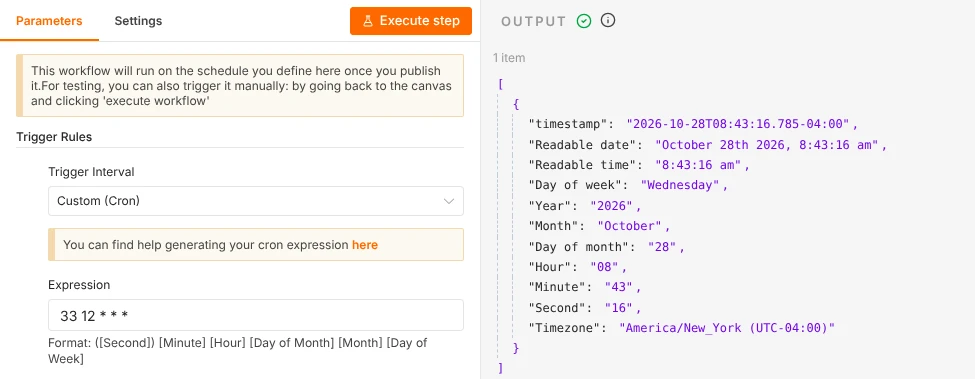
Cause: when GENERIC_TIMEZONE is not set, n8n uses America/New_York for every schedule, whatever the server’s own clock says. A trigger set for 09:00 then runs at 09:00 New York time, which is 14:00 in London in winter and 18:00 or 19:00 in Pakistan, depending on the time of year in New York.
Fix, for the whole instance: set GENERIC_TIMEZONE in the environment section of your Docker Compose file, using a name from the timezone database, then run docker compose up -d:
- GENERIC_TIMEZONE=Europe/London
- TZ=Europe/London
Fix, for one workflow: open the workflow’s ⋯ menu, choose Settings and set Timezone. This overrides the instance setting, and it is the way to do it on n8n Cloud:
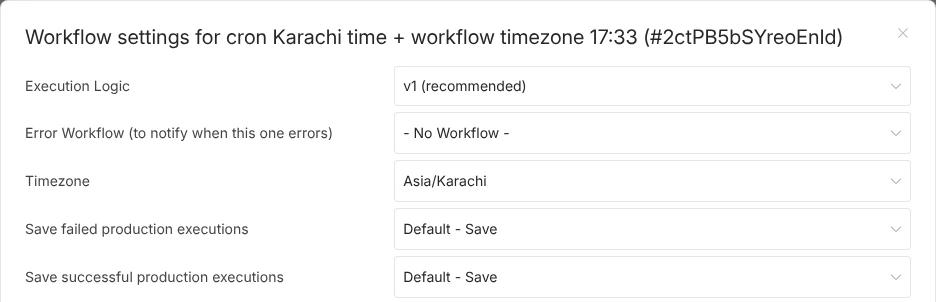
In our test, the workflow with its own Timezone set to Asia/Karachi ran at exactly 17:33 Pakistan time, on the same instance where the server default was still New York.
Watch for daylight saving time. Schedules follow the wall clock of their timezone. US clocks change on 1 November 2026 and UK clocks changed on 25 October, so a schedule set in one country’s timezone moves by an hour for people in the other for a week or two. Avoid scheduling between 1:00 and 3:00 at night, when clocks jump.
2. You set TZ, but schedules ignore it
What we saw: we started that instance with TZ=Asia/Karachi and no GENERIC_TIMEZONE. The workflow scheduled for 17:33 Pakistan time never ran; the New York one did.
Cause: TZ sets the timezone of the container and the operating system, which affects log times and some system tools. n8n’s schedules read GENERIC_TIMEZONE (or the workflow setting) instead.
Fix: set both to the same value, as in the snippet above. Our Docker guide and Hostinger guide already do this.
3. The workflow is not published
What we saw: an unpublished workflow with an “every minute” schedule had zero executions after 20 minutes. Its published twin ran every minute.
Cause: a Schedule Trigger only runs on its own once the workflow is published. Clicking Execute workflow or Execute step runs it once, immediately, for testing; it does not start the schedule. The node reminds you of this at the top of its settings.
Fix: click Publish at the top right. If the button says Published with a green dot, the schedule is live.
4. The trigger failed to start (red dot on Publish)
What we saw: we published two workflows with invalid cron expressions, 0 25 * * * (there is no hour 25) and every day at 9. Publishing seemed to work, but neither workflow ever ran. The editor showed a red dot on the Publish button, with this message on hover:
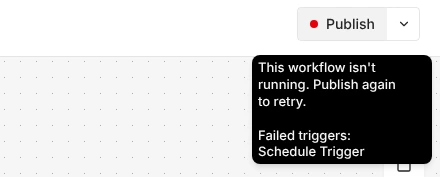
The n8n log gave the reason: There was a problem activating the workflow: "Invalid cron expression".
Cause: n8n accepts the workflow but cannot start its trigger. The most common reason is a cron expression with an out-of-range value or the wrong number of fields.
Fix: n8n’s cron format is [Second] Minute Hour Day-of-month Month Day-of-week, with seconds optional. Some expressions that work:
| Schedule | Cron expression |
|---|---|
| Every day at 09:00 | 0 9 * * * |
| Weekdays at 08:30 | 30 8 * * 1-5 |
| Every 15 minutes | */15 * * * * |
| First day of each month at 07:00 | 0 7 1 * * |
| Every 30 seconds | */30 * * * * * |
Simpler still: use the built-in Trigger Interval options (Days, Weeks, Hours and so on) instead of Custom (Cron). Then publish again and check that the dot is green.
5. n8n was down at the scheduled time
What we saw: with an “every minute” workflow running, we stopped n8n at 12:35:44 and started it again at 12:39:03. The runs due at 12:36, 12:37 and 12:38 never happened, and n8n did not run them after it came back. The next run was the normal one at 12:39:44:
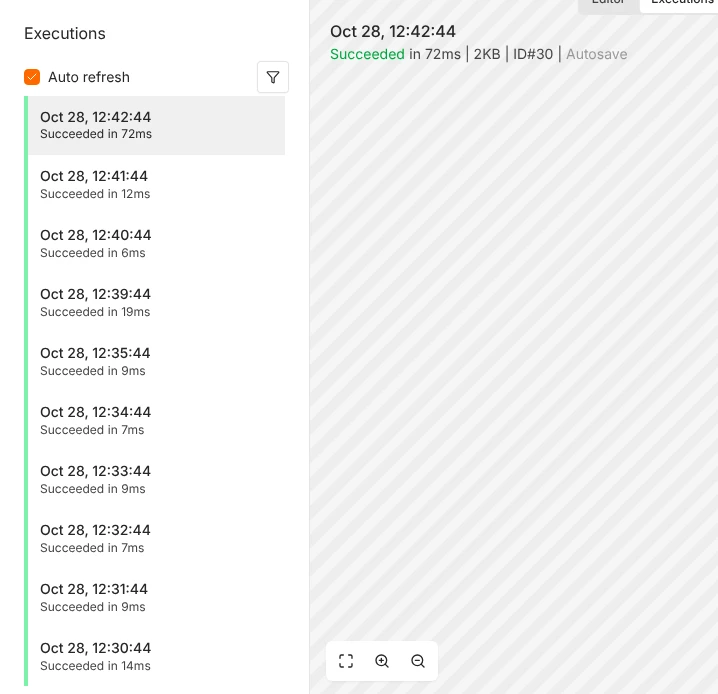
Cause: by default, n8n keeps its schedules in memory. If n8n is stopped, restarting or updating when a run is due, that run is skipped. For a daily report, one missed run means a missing day.
Fix: keep n8n running reliably (enough RAM, restart: always in Docker Compose, see how much RAM n8n needs), and schedule updates away from important run times. For jobs that must not be skipped, add a check at the start of the workflow, such as “has today’s report been sent?”, and run the schedule more often than needed.
n8n 2.43.5 also includes a new scheduler in preview that can run missed executions, with an If Execution Is Missed setting on newer Schedule Trigger nodes. It is switched off by default (N8N_SCHEDULER_ENABLED), and we did not test it, so treat it as experimental.
6. It runs, but nothing appears in Executions
What we saw: we set a scheduled workflow’s Save successful production executions setting to Do not save. Its only job was to call a second workflow every minute. The second workflow received a call every minute, proving the schedule ran, but the first workflow’s Executions list stayed empty.
Cause: n8n can be told not to save successful runs, either per workflow (Workflow settings, shown in section 1) or for the whole instance (EXECUTIONS_DATA_SAVE_ON_SUCCESS=none). Failed runs are still saved by default.
Fix: set Save successful production executions to Save while you investigate. If the workflow sends email or writes to a sheet, check there too: the work may be happening without being logged.
7. “Every minute” runs at an odd second
What we saw: our “every minute” schedule always ran at 44 seconds past the minute, and a second “every minute” workflow ran at about 47 seconds past. Workflows with a cron expression such as 33 12 * * * ran at second 0.
Cause: this is intended. For interval rules like “every minute” or “every hour”, n8n picks a fixed second for each trigger so that all schedules do not fire at once. It stays the same for that trigger, so the interval is still exact.
Fix: none needed. If a run must start at an exact second, use a cron expression with a seconds field, such as 0 * * * * * for the start of every minute.
8. It runs, but the workflow fails
If the Executions list shows runs marked Error, the schedule is working and a later node is the problem. Open the failed run to see the node marked in red and its error message. To hear about failures without checking, create an error workflow that sends you an email or Slack message, and select it under Error Workflow in Workflow settings. Our webhook troubleshooting guide covers many of the same failures for webhook-started workflows.
Debug any schedule in five minutes
- Is the workflow published, with a green dot?
- Click Execute step on the Schedule Trigger and check the Timezone and Hour in its output.
- Set the schedule a few minutes ahead, publish, and watch Executions.
- If nothing appears, check Save successful production executions in Workflow settings.
- On self-hosted n8n, run
docker compose logs n8n --tail=100and look for “problem activating the workflow”.
Running n8n on your own server? Our security checklist and safe update guide help keep it up when your schedules need it. Prefer not to maintain a server? On n8n Cloud, you only need to set the timezone in Workflow settings.
Try n8n Cloud freeFrequently asked questions
What timezone does n8n use by default?
America/New_York, unless GENERIC_TIMEZONE is set on the instance or a timezone is set in the workflow’s settings. We confirmed this on n8n 2.43.5: the Schedule Trigger’s output showed “America/New_York (UTC-04:00)” on an instance with no timezone setting.
What is the difference between TZ and GENERIC_TIMEZONE?
TZ sets the system timezone of the server or container. GENERIC_TIMEZONE sets the timezone n8n uses for schedules and date functions. In our test, setting only TZ did not change when schedules ran. Set both to the same value.
Does n8n run missed schedules after a restart?
Not by default. In our test, three runs due while n8n was stopped were skipped, and the schedule simply continued from the next due time. A preview scheduler in recent versions adds an option to run missed executions, but it is off by default.
Can I run a Schedule Trigger every few seconds?
Yes. Choose Seconds as the trigger interval, or use a cron expression with six fields such as */30 * * * * *. On n8n Cloud, each run counts as an execution, so a short interval uses your plan quickly; see n8n pricing explained.
Why does my schedule work when I click Execute, but not on its own?
Execute runs the workflow once, immediately. The schedule only starts after you publish the workflow. If it is published and still does not run, look for a red dot on the Publish button.
How we tested: on 28 October 2026 we ran self-hosted n8n 2.43.5 with no GENERIC_TIMEZONE and TZ=Asia/Karachi, published ten scheduled workflows, and recorded every execution through n8n’s own execution list. We stopped the server for three minutes to test missed runs. All times above are from those runs.
Sources: n8n Schedule Trigger node documentation, n8n Schedule Trigger common issues, tz database time zones.
Get the free workflow template pack
Tested n8n workflows you can import in one click, plus a short email when new templates and comparisons go live.